Create a Time Slot Sign Up
We offer a time-saving feature that allows you to quickly populate time slots if you are creating a sign up with regular appointment times or shifts.
- From the Slots tab, select the format Sort by Date.
- Click Add Dates.
- Choose the option Add Time Slots.
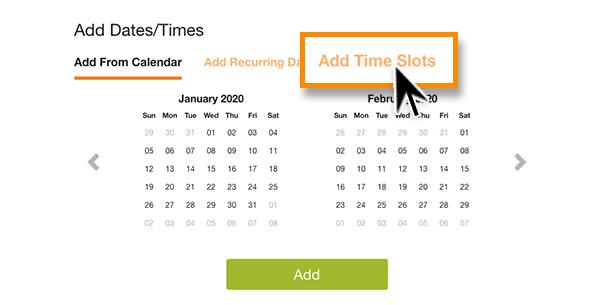
If this is a one-day event, enter the same date for the beginning and ending date. If the event is more than one day, check the days of the week where time slots are needed. Enter the beginning and ending time along with Time Slot Increment needed (for example, every 20 minutes).
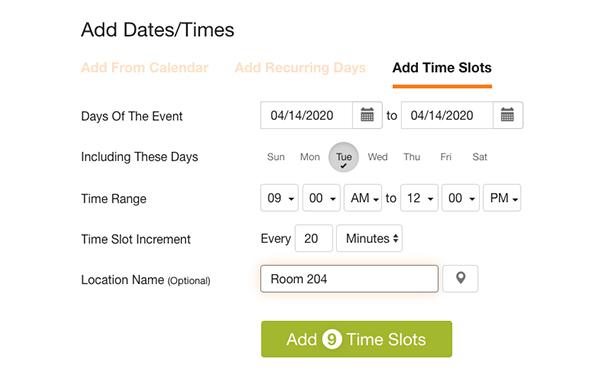
- Click Add Time Slots. The system will automatically populate the dates/times for you.
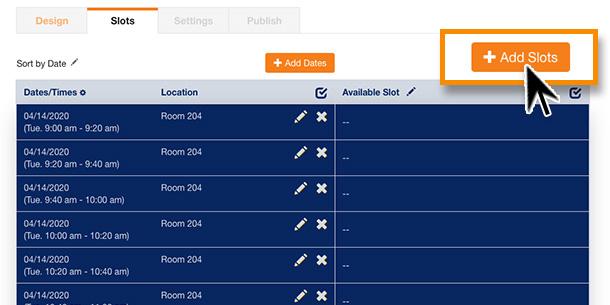
Next, you will need to assign a slot to each of the dates/times you have created.
- Click the orange Add Slots button.
- Enter the Title of Slot as "Appointment" or other suitable text and choose the number wanted for each of your times. For example, if you choose "1" as the number wanted, this will allow one person to sign up for each time slot.
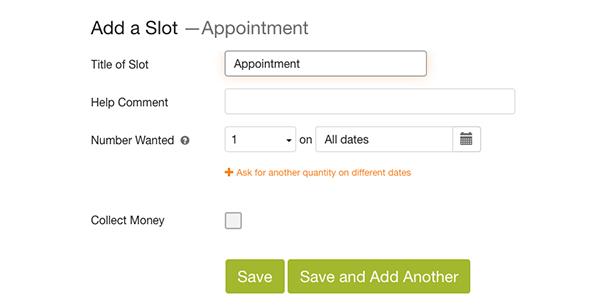
If you are creating a sign up with more than one type of sign up opportunity, create individual slots and assign each slot to specific dates/times as needed.
- Click Save to add the slot to your dates and times.
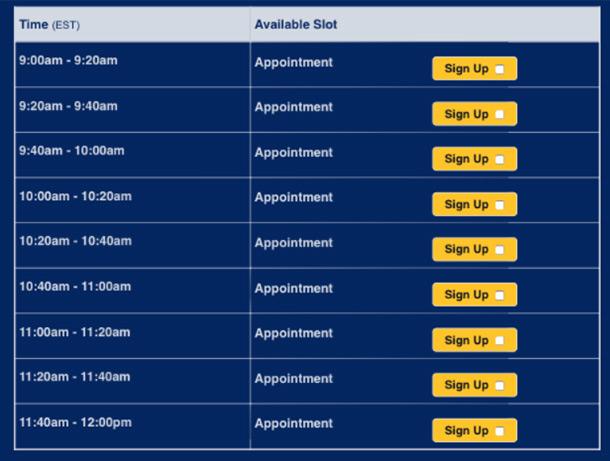
Once you have entered all information on the Slots tab, you can proceed to the Settings tab. You can also go to the Publish tab to preview your sign up.